Smart Shopper Malta · Buying guide
AMD Adrenalin settings: a practical guide to smoother PC gaming
Updated
A good graphics setup should suit the game you play and the screen you use. Rather than switching every enhancement on, start with a repeatable test and keep only the changes that improve your experience. This guide explains a measured approach to AMD Software: Adrenalin Edition, with help available from our team in Żabbar, Malta.
Before you change anything
- Check your exact Radeon graphics model and use AMD’s official support page to find the appropriate driver. For a laptop or prebuilt system, also check the computer manufacturer’s guidance. Feature availability varies with the graphics hardware, operating system, driver and game; an option missing from your screen is not necessarily a fault.
- Write down your current driver version, display resolution and game settings. Keep a record of settings that already work well. Leave clock speeds, voltages and power limits at their defaults while you investigate graphics options: this guide does not require overclocking.
1. Measure the experience you already have
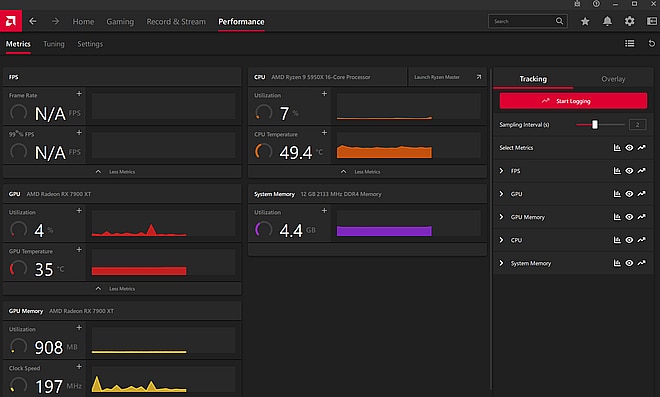
- In AMD Software, search for Metrics to find performance monitoring. On supported installations you can display selected statistics during play or save a performance log. Choose a small set, such as frame rate, GPU utilisation and temperature, so the overlay stays readable.
- Use the same saved game, route or built-in benchmark for each comparison. Keep resolution and graphics quality unchanged during the baseline run. Note visible stutter, responsiveness and fan noise as well as the frame-rate figure; a higher counter is not the only useful result.
- Repeat the test before drawing a conclusion. A loading screen, background download or different scene can make two runs hard to compare. Avoid treating a single screenshot as a reliable measure of an entire game.
2. Make a profile for one game
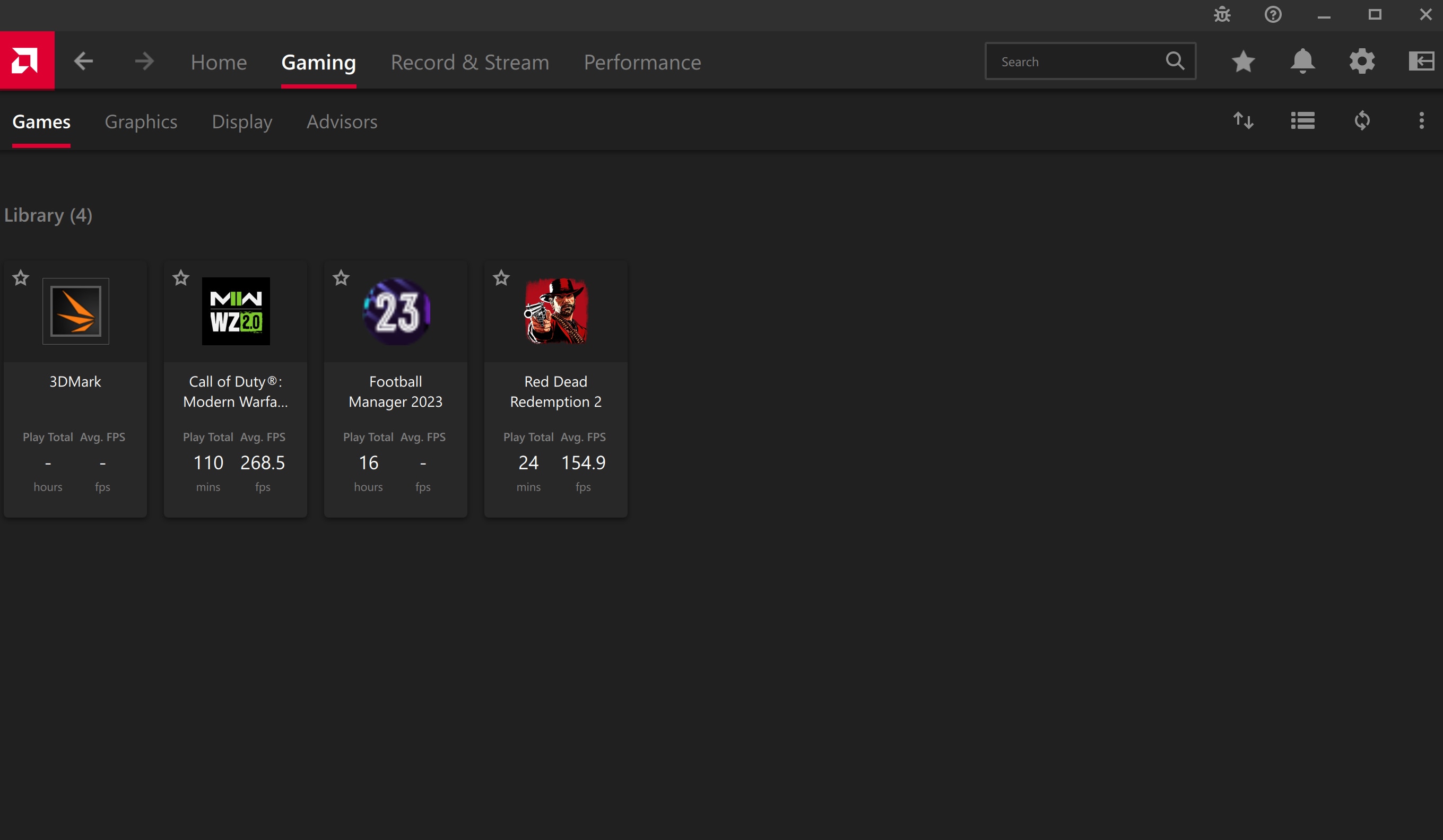
- Open Gaming, select Games and choose the title you want to adjust. AMD’s application profiles let you override global graphics options for an individual game. Start there so an experiment in one title does not change the rest of your library.
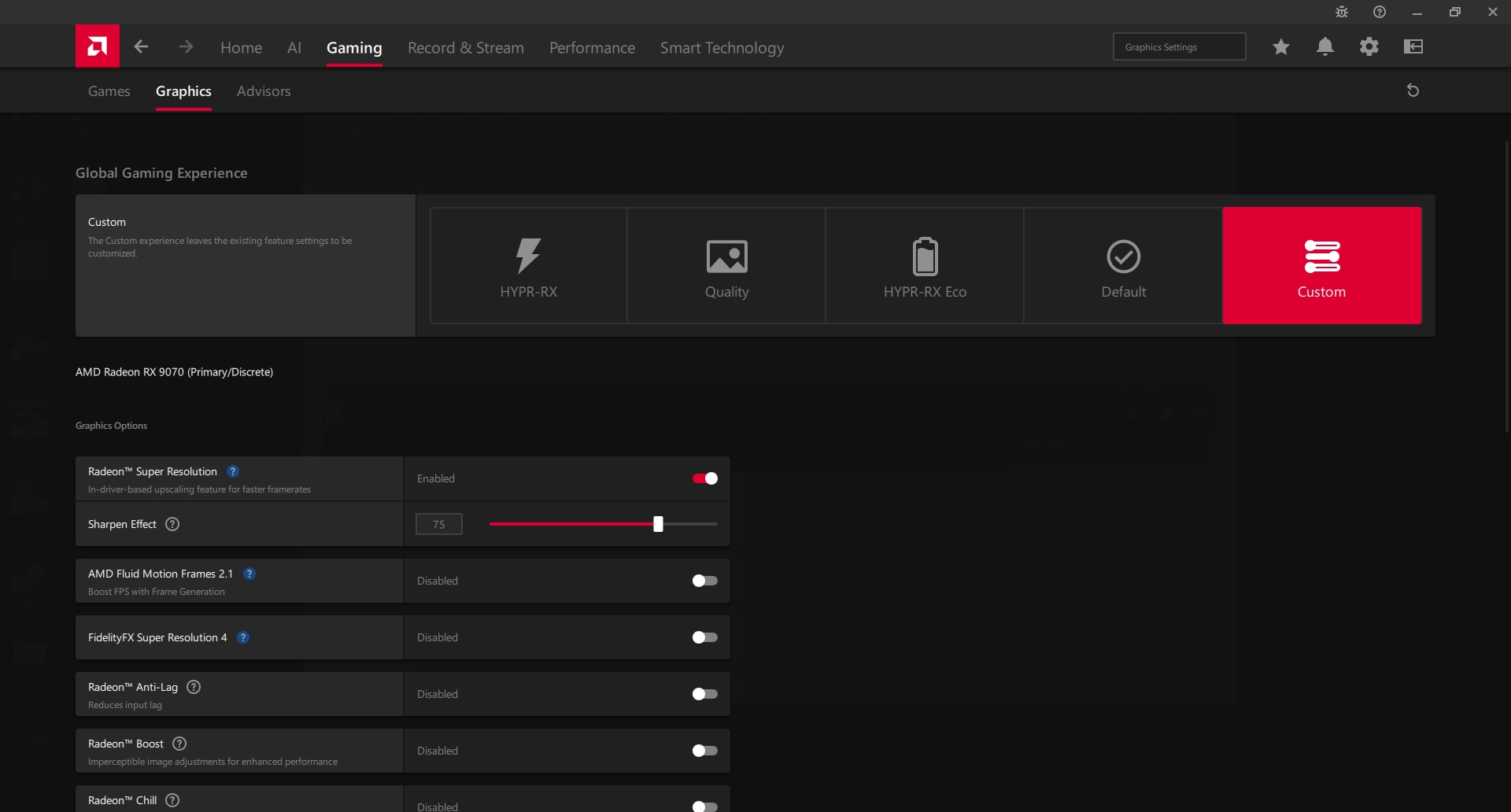
- HYPR-RX offers a preset combination of supported features. If your system offers it, compare it with your baseline rather than assuming it is automatically the best choice. Check which settings it enables before adding other options yourself.
3. Choose between responsiveness and lower power use
- Radeon Anti-Lag adjusts frame timing to reduce the delay between input and the displayed response, with particular relevance when the GPU is the limiting factor. Check the specific feature supported by your game and driver; similarly named Anti-Lag features do not all have the same requirements.
- Radeon Chill adjusts frame rate according to in-game movement. It is worth comparing when you would prefer lower power use over continually rendering the highest possible frame rate. Choose minimum and maximum targets appropriate to your game, then assess how transitions feel.
- Some graphics options are mutually exclusive. Do not force a combination that AMD Software disables when another option is selected. For a simple comparison, test a responsiveness-focused profile and a power-focused profile separately.
4. Use upscaling deliberately
- When a game provides AMD FidelityFX Super Resolution in its own menu, AMD recommends using that integrated option instead of Radeon Super Resolution. RSR is a driver-level alternative for supported situations, and it needs a rendering resolution below the display’s native resolution to become active.
- Compare the available quality modes while looking at small text, fine detail and moving edges. Keep the setting only if its performance benefit is useful to you at an image quality you are happy with. Do not stack upscalers without checking how the game and driver interact.
5. Treat generated frames as a separate experiment
- AMD Fluid Motion Frames adds frame generation through supported AMD Software configurations. Check AMD’s current requirements for your hardware and driver before looking for its switch. Supported games and other settings can affect whether it is available.
- Compare the feel of aiming, camera movement and moving interface elements with the feature on and off. Generated frames are not the same measurement as frames rendered by the game. Record whether frame generation was enabled whenever you compare results, and do not assume that a larger displayed FPS figure means proportionally quicker controls.
6. Keep a short settings record
- For each game, keep a note of the driver, resolution, profile, upscaling mode and frame-generation setting. Record the result of your repeatable test and whether you preferred it. Change one setting at a time when investigating a problem.
- If an experiment makes play worse, return to the earlier profile. AMD Software includes settings export, import and reset tools; read the reset confirmation carefully because a full settings reset affects more than one game. A reset should be a considered troubleshooting step, not something you need after every driver update.
When settings are not the whole answer
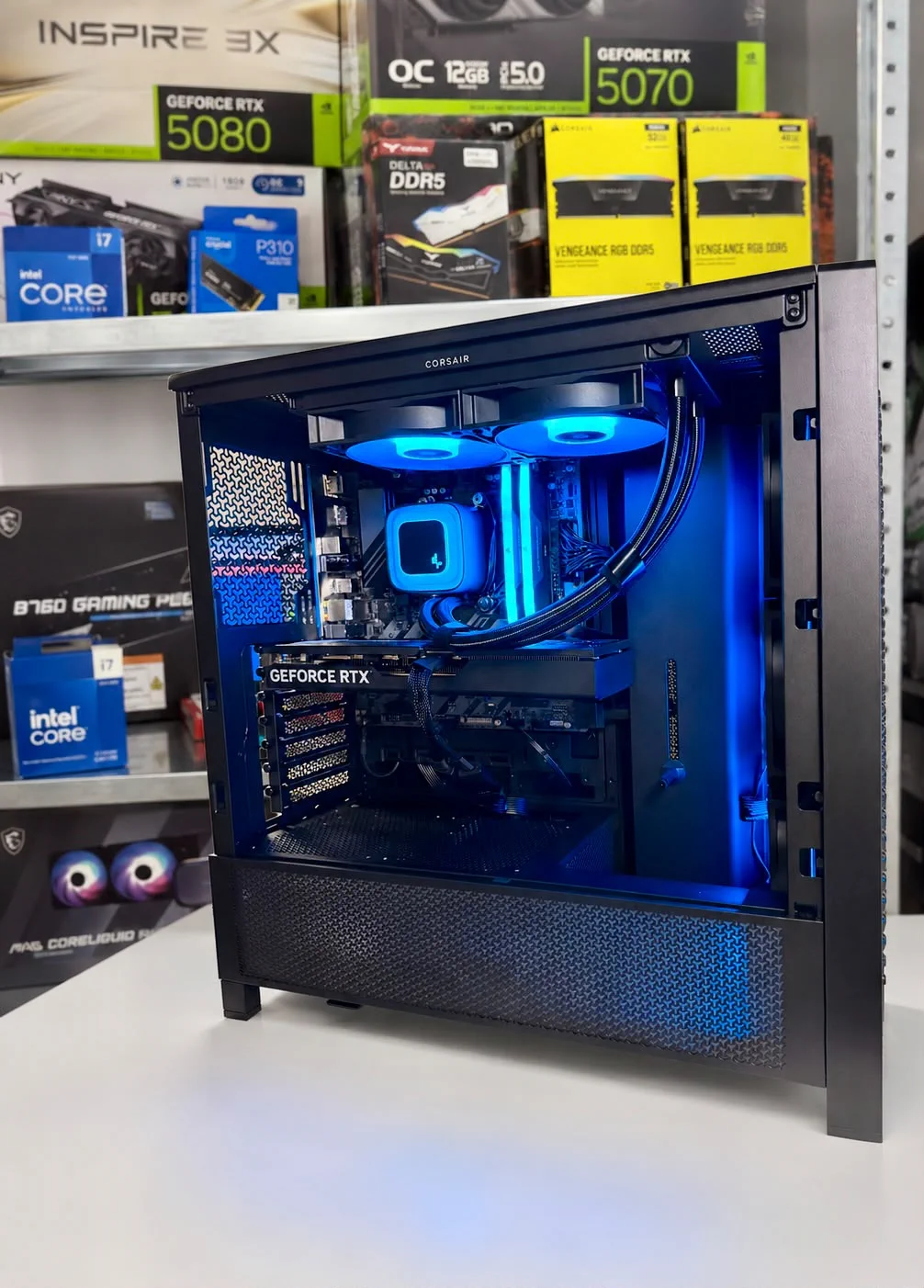
- If the computer still struggles at the resolution and quality you want, send us the graphics card model, processor, memory, power supply, monitor and the games you play. Include your current settings and a description of the problem so we can discuss the system as a whole.
- Smart Shopper Malta offers advice, laptop and desktop upgrades, and custom computers assembled and tested in Malta. We can help assess the next step from our Żabbar store. Results depend on the complete system and game; this article does not promise a particular FPS gain.
Official AMD references
Check these documents for current requirements and instructions for your hardware and software version.